

Firewall
Fortinet
Configure Fortinet firewalls to route traffic through Tillered nodes
For general port requirements and network prerequisites, see the firewall overview.
Tillered devices are designed to be connected to the network's side, not directly in the active path. This configuration allows the administrator to control which traffic passes through the Tillered Nodes. To set up a Tillered Entry Node (TEN) with your local network using Fortinet, follow these steps:
- Configure a Physical Fortinet Interface for Tillered Use:
- Alias it to
"Tillered" - Set the Role to
"LAN"so it enabled DHCP
- Alias it to
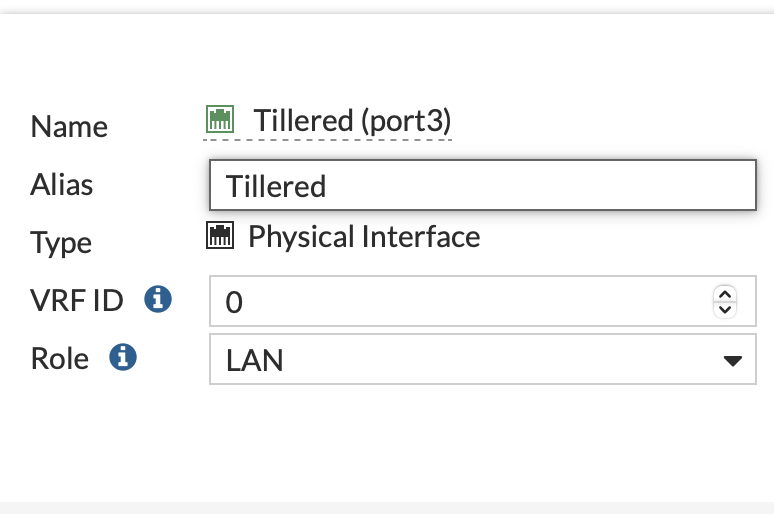
- Enable the DHCP Server on the Tillered Interface:
- Specify the DNS servers you want the Tillered server to use.
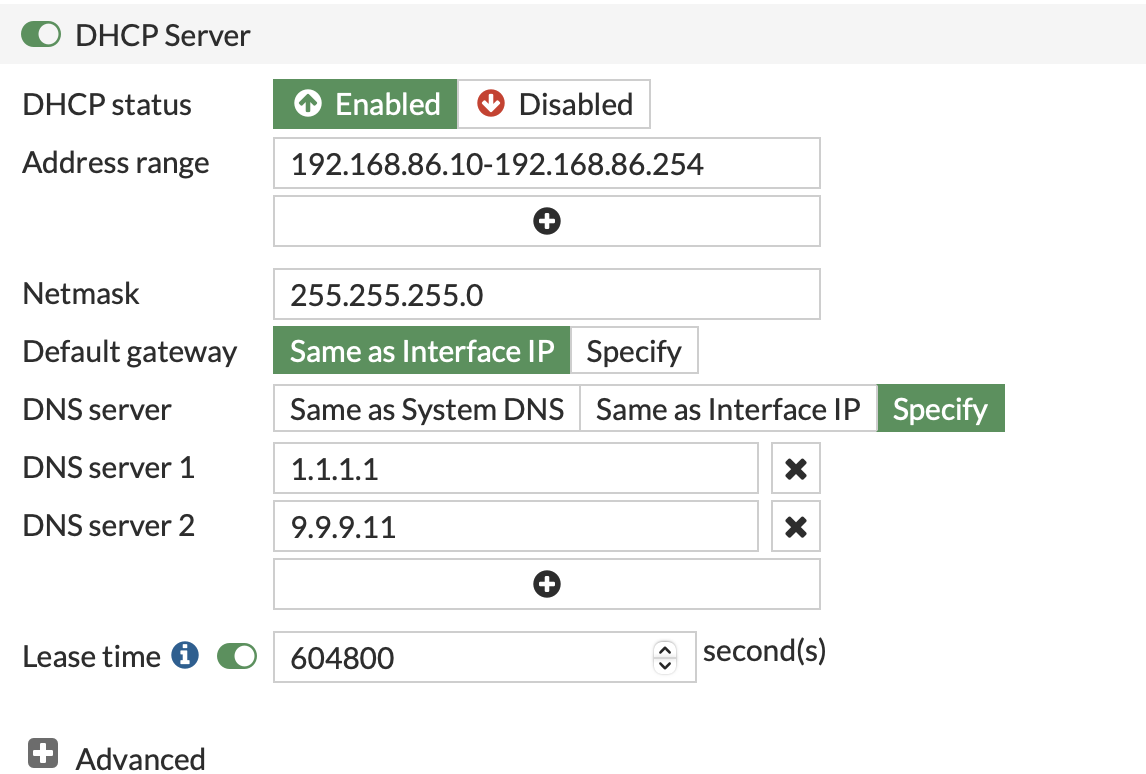
It is highly recommended to create reservations for the MAC and IP addresses for the Tillered interfaces. Each Exit/FTN node requires a unique IP.
- Create Firewall Policies:
- Allow traffic from the Tillered Network to the Internet and your exit nodes.
- Establish appropriate firewall policy rules to permit traffic from the LAN to the Tillered Network.
- Ensure Internet Access for Tillered Nodes:
- The Tillered nodes require internet access for installation and ongoing configuration for the Tillered hub.
Creating Policy Routes
-
Navigate to Network\Policy Routes:
- Go to Network\Policy routes and create a new policy route as needed for your network configuration.
-
Example Policy Route for Azure Traffic:
- Create a policy route to direct Azure traffic through the Tillered Node interface corresponding to your Azure exit node. This will route all traffic destined for Azure through that node.
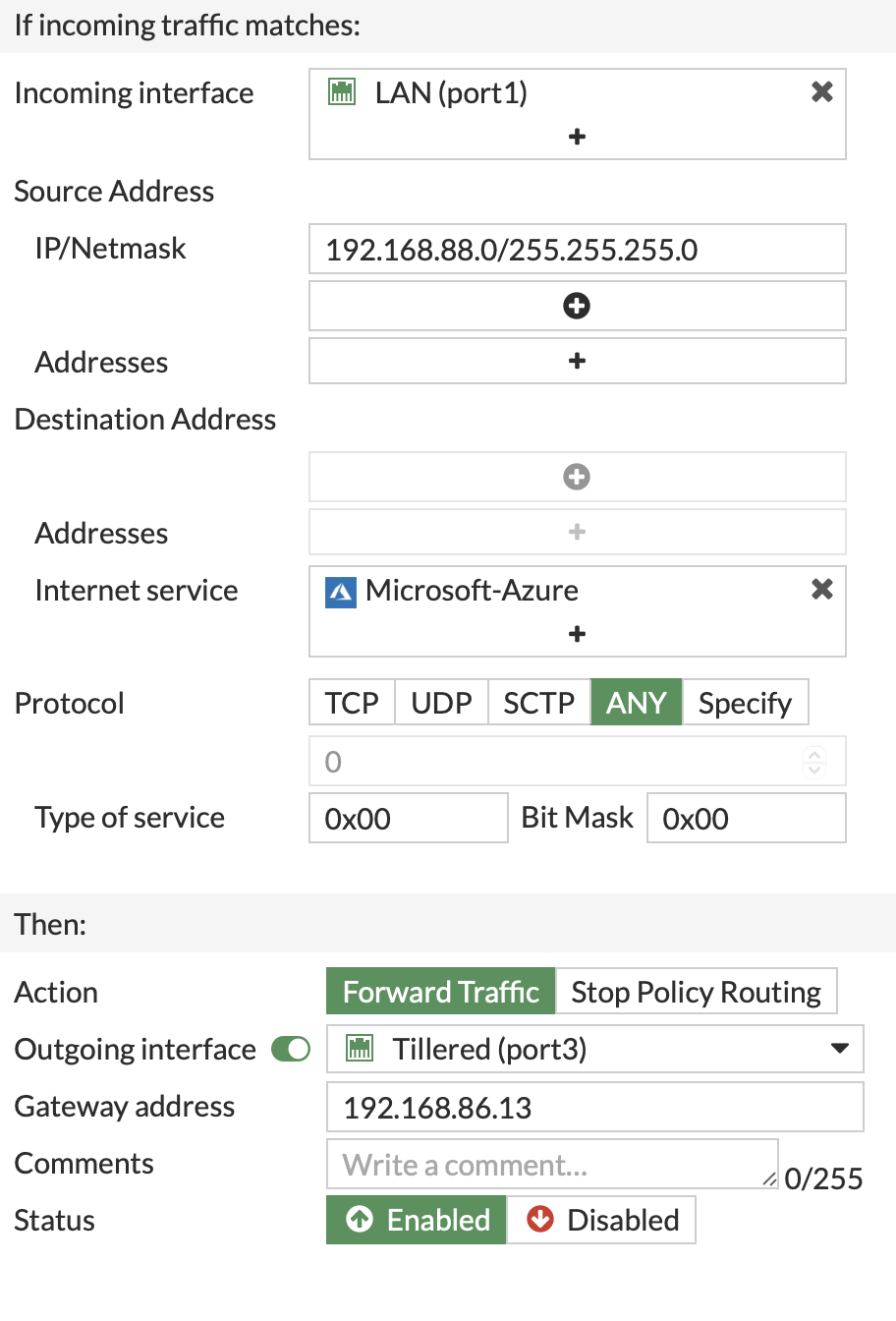
- Example Policy Route for Transparent VPN Acceleration:
- Create a policy route to route TCP traffic through the Tillered node interface that connects to a remote VPN site, enabling transparent acceleration.
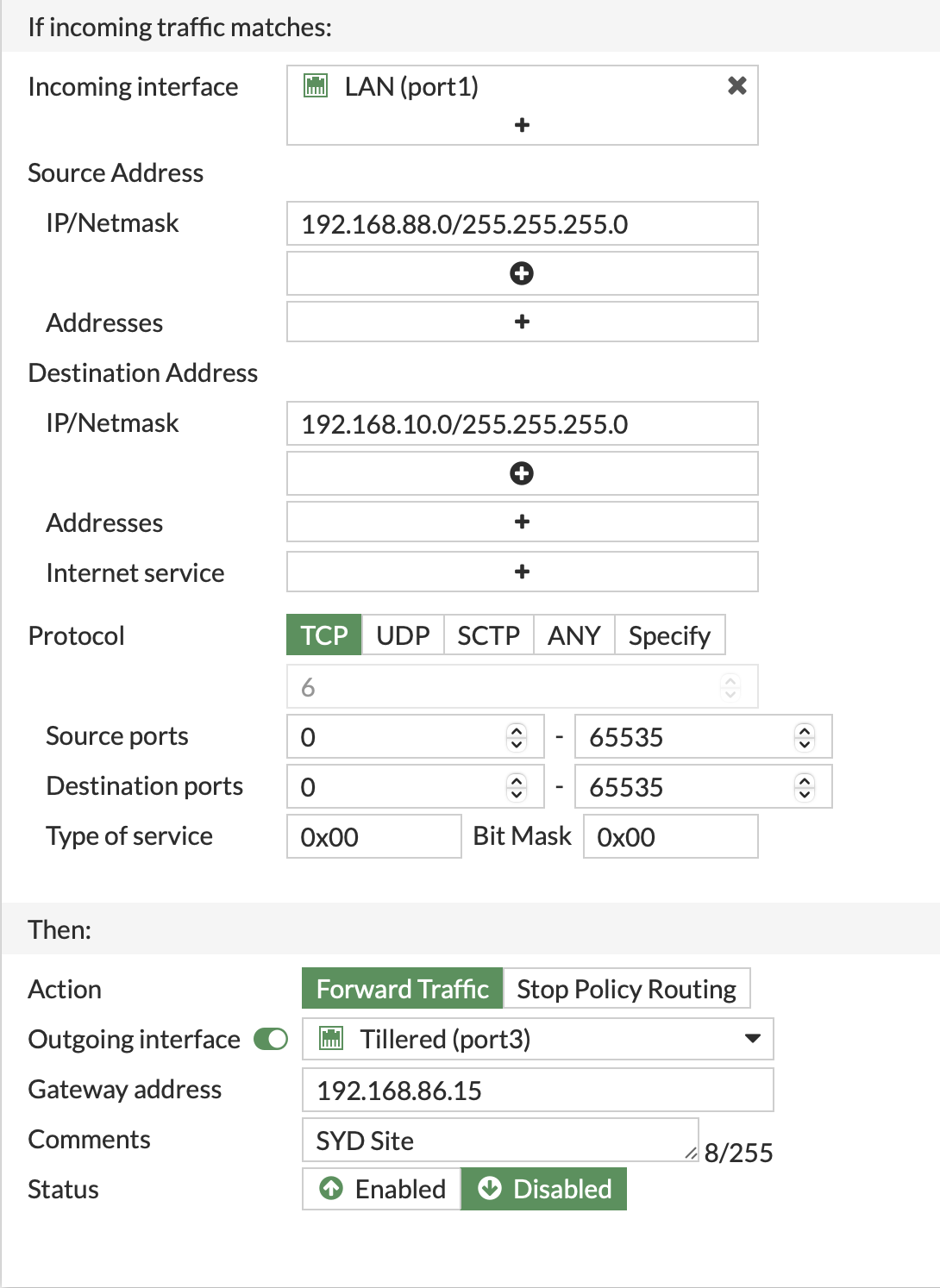
If you are using transparent mode, you may need to disable the RPF check. Refer to: Fortinet Technical Tip on RPF