

Troubleshooting
Resolve common Tillered Cloud provisioning, connectivity, and routing issues
Node stuck in provisioning
Symptoms
The node status remains "Provisioning" in the Tillered Hub for more than 15 minutes.
Diagnosis
- Verify the node has internet access and can reach
hub.tillered.comon port 443 - Check that SSL/TLS inspection is not applied to the node's outbound traffic
- Verify the instance identifier matches exactly (see Register a node for platform-specific formats)
- Confirm the validation IP address is correct
Resolution
- If the node cannot reach the Hub, check firewall rules and DNS resolution
- If the identifier is wrong, remove the node from the Hub and re-add with the correct identifier
- For cloud platforms (AWS, Azure), ensure the VM has finished its initial boot sequence before adding to the Hub
- Some nodes reboot during provisioning - wait for the process to complete before troubleshooting
Node shows offline
Symptoms
A previously provisioned node shows "Offline" in the Tillered Hub.
Diagnosis
- Verify the node VM or instance is running
- Check network connectivity from the node to the internet
- Verify ports 61000-61999 TCP/UDP are open
Resolution
- Restart the node VM if it is stopped
- Check for network changes (VLAN reassignment, firewall rule changes) that may have disrupted connectivity
- Verify DHCP leases have not expired if using dynamic addressing
Traffic not routing through Tillered
Symptoms
Devices behind the entry node still show their original public IP instead of the exit node's IP.
Diagnosis
- Verify the entry node is provisioned and shows interfaces in the Hub
- Check that your firewall policy route uses the correct gateway IP (the entry node interface IP, not the node's management IP)
- Verify the firewall rule is positioned above any default allow rules
- Confirm the rule matches the traffic you expect to route (correct protocol, source, destination)
Resolution
- Review your firewall configuration against the vendor-specific guides
- Ensure the gateway IP matches the interface IP shown in the Tillered Hub for the target exit node
- Test with a simple rule routing all TCP traffic before adding more specific rules
- Check that the entry node's network segment is reachable from your firewall
Slow performance
Symptoms
Traffic routed through Tillered is noticeably slower than direct connections.
Diagnosis
- Test baseline latency between your network and the exit node's region
- Check if bandwidth limits are configured in your firewall rules
- Verify the node VM has adequate resources (minimum 2 vCPUs, 4 GB RAM)
Resolution
- Ensure the node VM meets minimum resource requirements
- Choose an exit node region closer to the destination
- Check for network congestion on the node's local network segment
- Verify the node's network interface is not saturated
DNS issues
Symptoms
DNS resolution fails or returns unexpected results for traffic routed through Tillered.
Diagnosis
- Check which DNS servers are configured on devices behind the entry node
- Verify DNS traffic is being routed through Tillered (or excluded from routing)
Resolution
- If routing all traffic through Tillered, configure devices to use the exit node's DNS server IP (shown in the entry node interface details)
- Alternatively, exclude DNS traffic (port 53) from Tillered routing and use local DNS servers
- See the MikroTik guide for an example of DNS configuration with Tillered
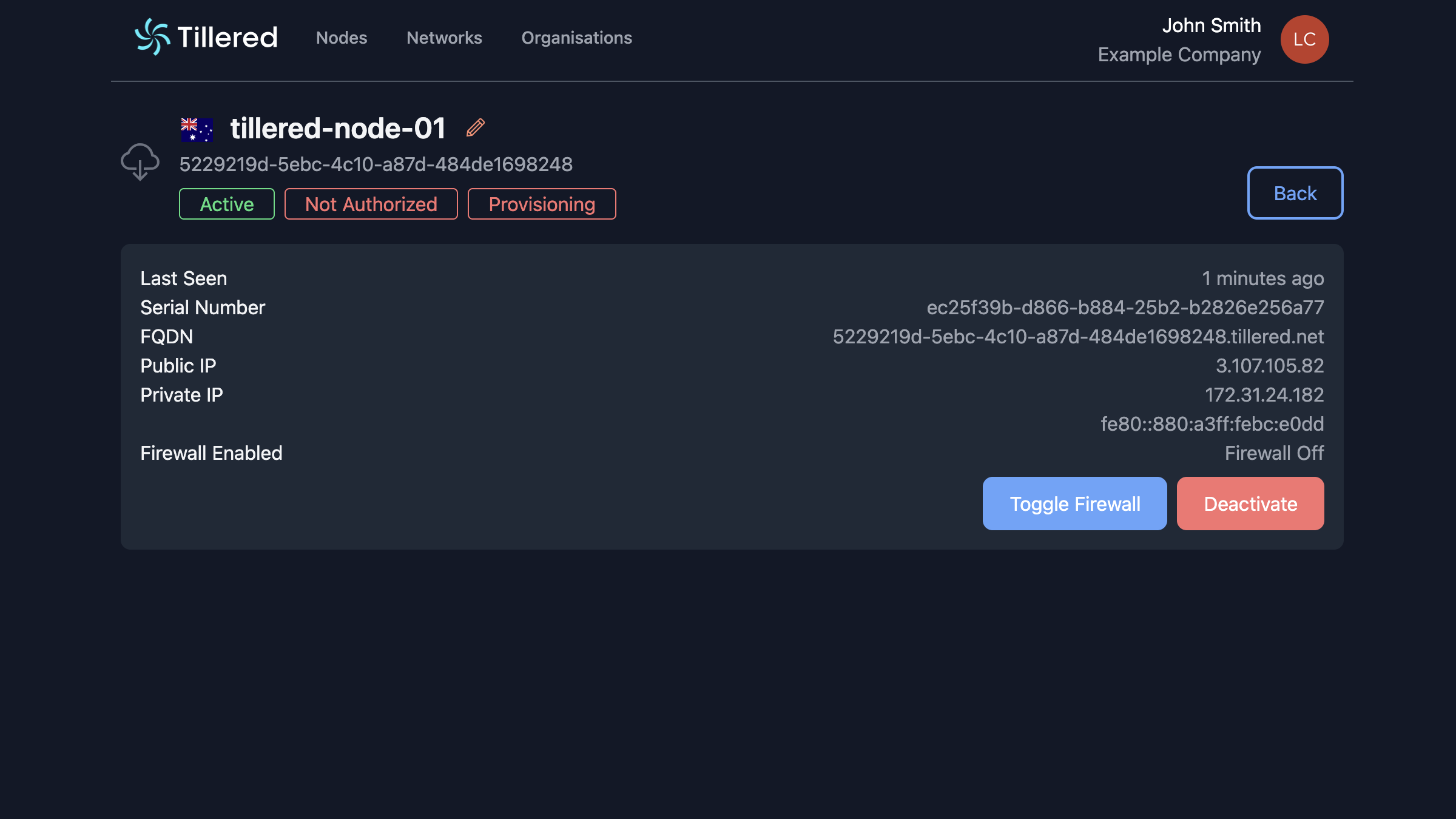
Node shows Not Authorized
Symptoms
Node was added but displays "Not Authorized" status and does not function.
Diagnosis
Payment was not completed during registration.
Resolution
- Click Deactivate on the node and type
Confirm
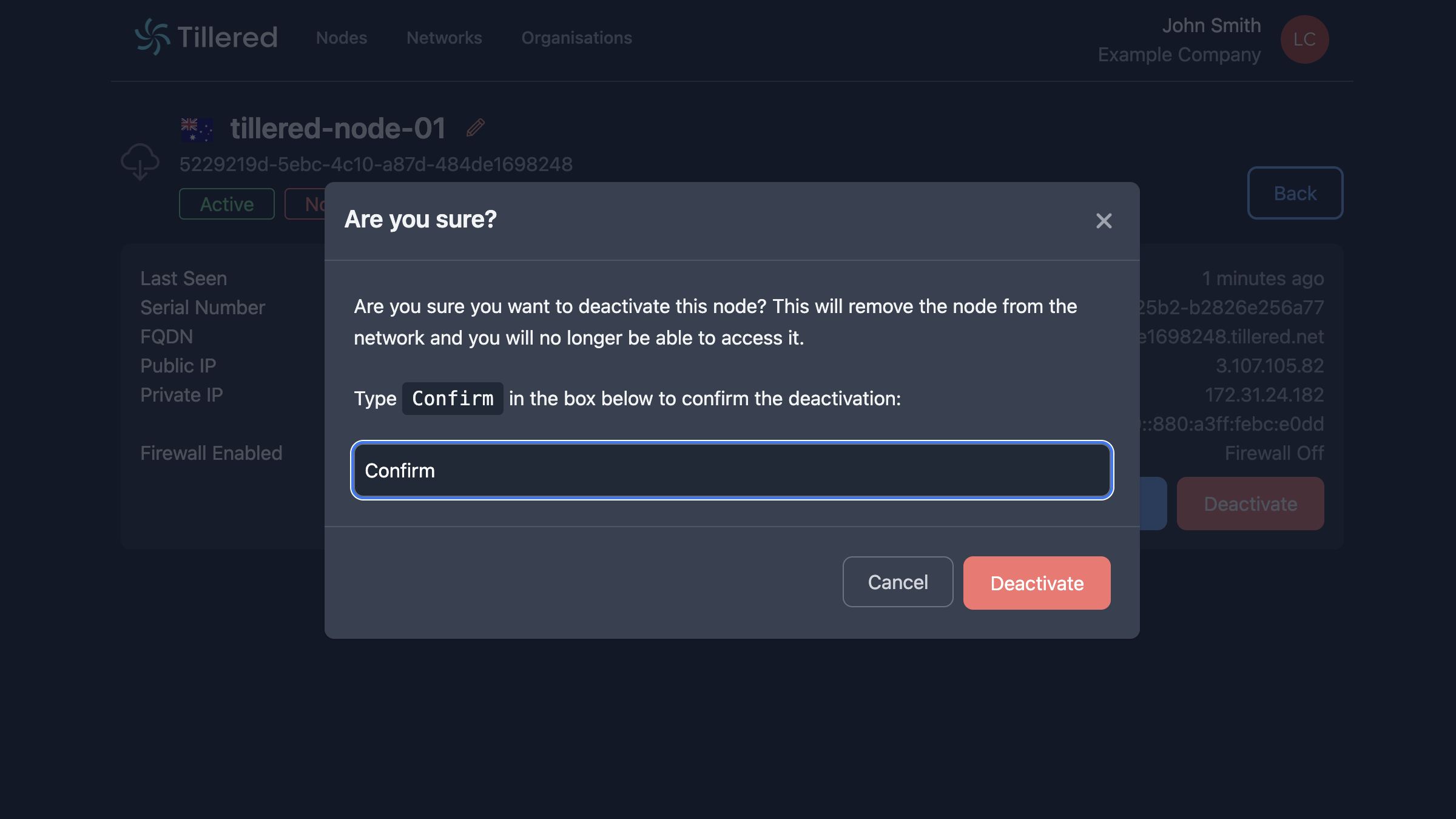
- Re-add the node following the registration steps
- Complete payment through Stripe when prompted